
 DayKeeper
Keep your important
days close.
DayKeeper is a countdown and anniversary app for iOS and Android. Track lunar birthdays, set recurring reminders and count days up or down, with iPhone home screen widgets to keep important dates in view. The iOS version is optimized for iPhone Duo.
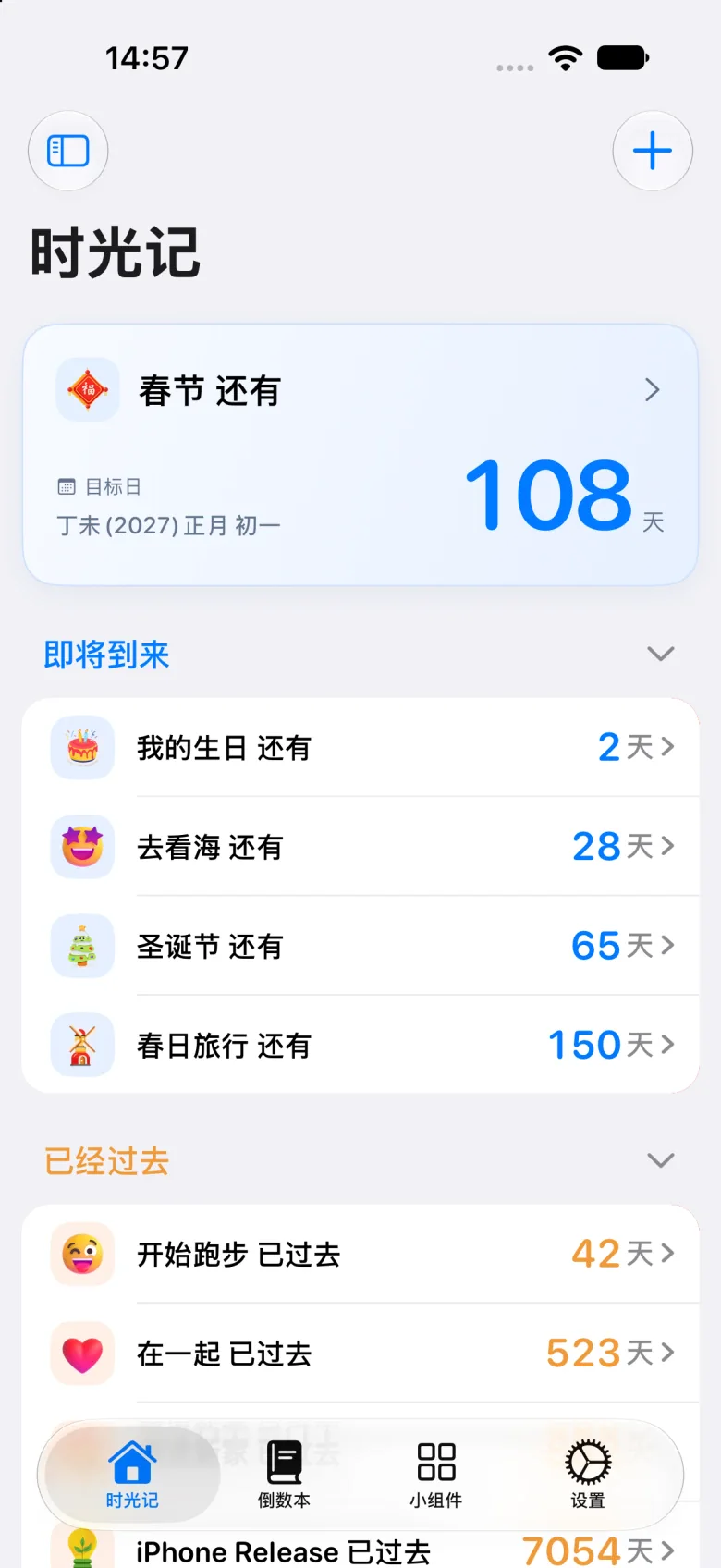
Keep important dates
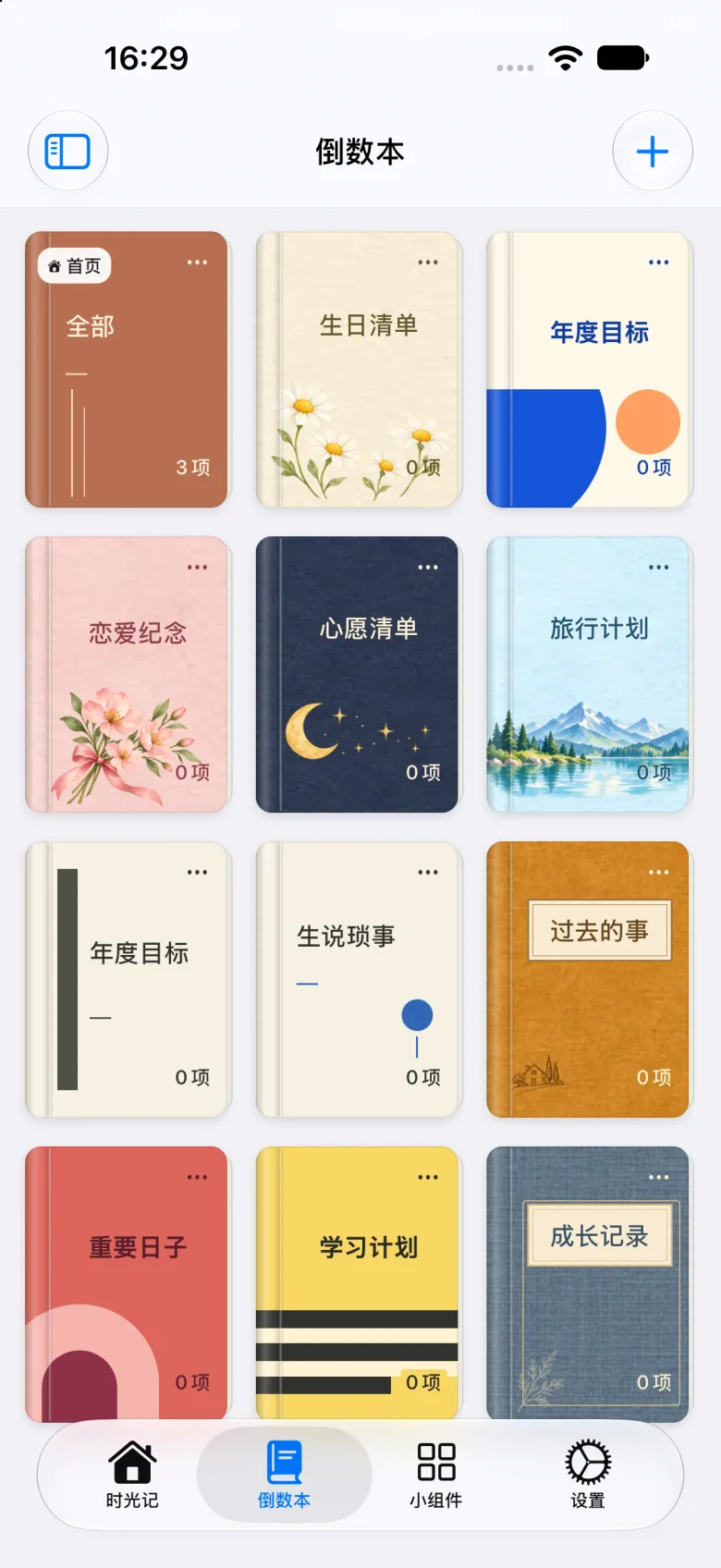
in their own collections.
Organize birthdays, anniversaries and travel plans into separate collections, with a place for every date you look forward to.
- Birthday
- Anniversaries
- Travel
Lunar birthdays
Record birthdays using the Chinese lunar calendar so they follow the lunar date each year.
Recurring reminders
Repeat dates weekly, monthly or yearly, and configure notifications separately for each occasion.
Count down or count up
See how long until your next trip, or how many days have passed since you met, started dating or got married.
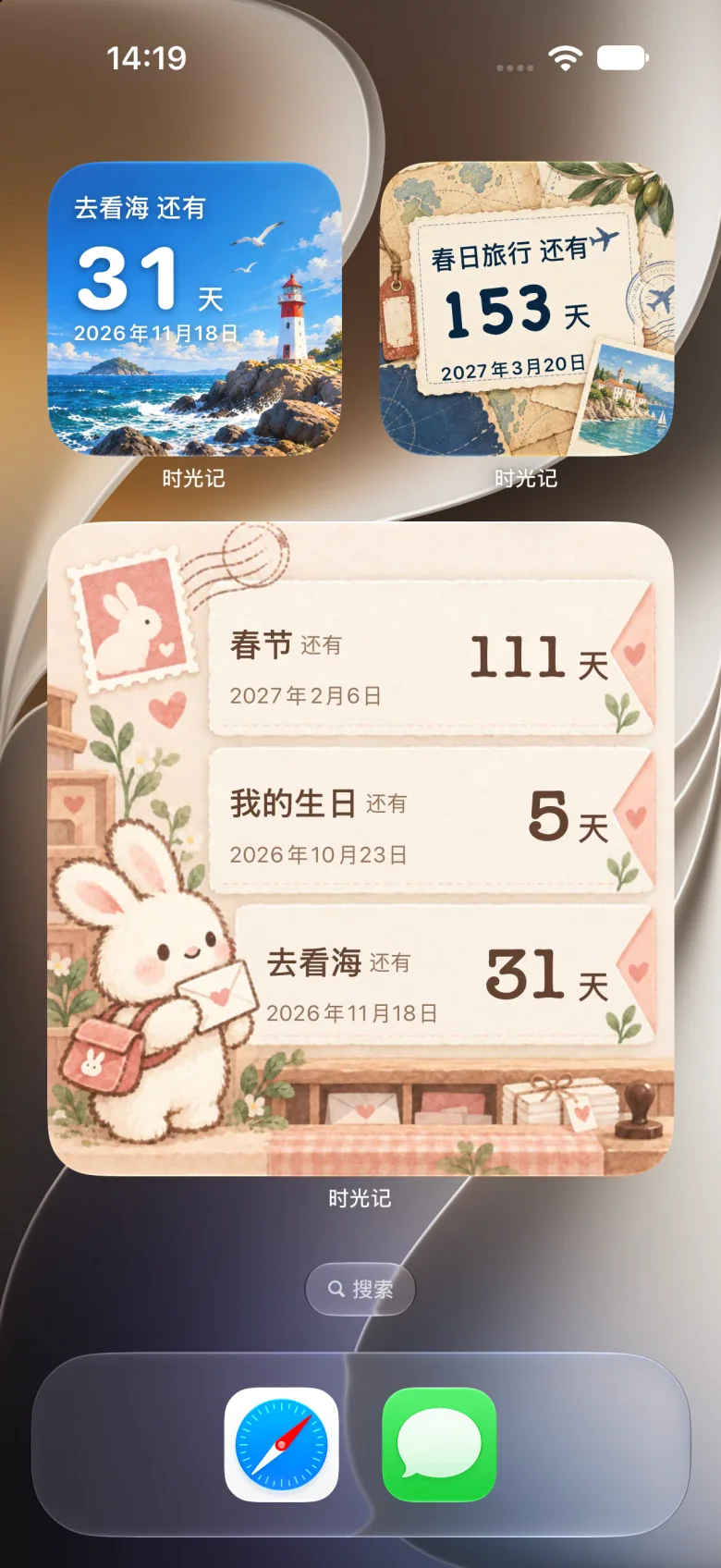
Make a moment into a keepsake.
Capture and share important moments in a style you love.
Give the days ahead and the days behind a special place to stay.
More to explore
What kinds of dates can I track?
Birthdays, anniversaries, travel plans, bill dates or any day that matters to you. Count down to what is next, count up from a past moment and organize dates into separate collections.
Does DayKeeper support lunar dates and recurring reminders?
Yes. Dates can use the Chinese lunar calendar and repeat weekly, monthly or yearly. For a lunar birthday, choose the lunar date, set a yearly repeat and enable the notification options you want. Notifications require system permission.
How do I set a yearly lunar birthday reminder?
Enable the lunar calendar in Settings first. When adding or editing a date, choose the lunar calendar in the date field and select the birthday, including the leap month when applicable. In advanced options, set a yearly repeat, then choose a notification method and time before saving. Allow system notifications when prompted; repeating a date alone does not enable notifications.
How do I add an iPhone home screen widget?
Save a date in DayKeeper first. Touch and hold an empty area of your iPhone home screen, use Edit or the plus button to add a widget, then search for DayKeeper and choose a size. After adding a classic widget, touch and hold it and choose Edit Widget to select a date or collection. For custom styles, save a configuration in the app’s widget center first, then add the matching widget and select that configuration. Menu names may vary by iOS version.
Is DayKeeper available on iOS and Android?
Yes. The phone screenshots on this page show the iOS version. Widget appearance and available features vary by platform; check the version for your device.
Does DayKeeper support iPhone Duo?
Yes. The iOS version is optimized for iPhone Duo. Date lists, editing screens and the widget center adjust to the space available on the inner and outer displays.