
Swipe to organize
Swipe left to mark, right to keep, and work at your own pace.
 PhotoTrim
 is a photo cleanup app for iPhone. Swipe through your library, compare similar shots and compress photos or videos. Analysis happens on your device, and you confirm what gets deleted.
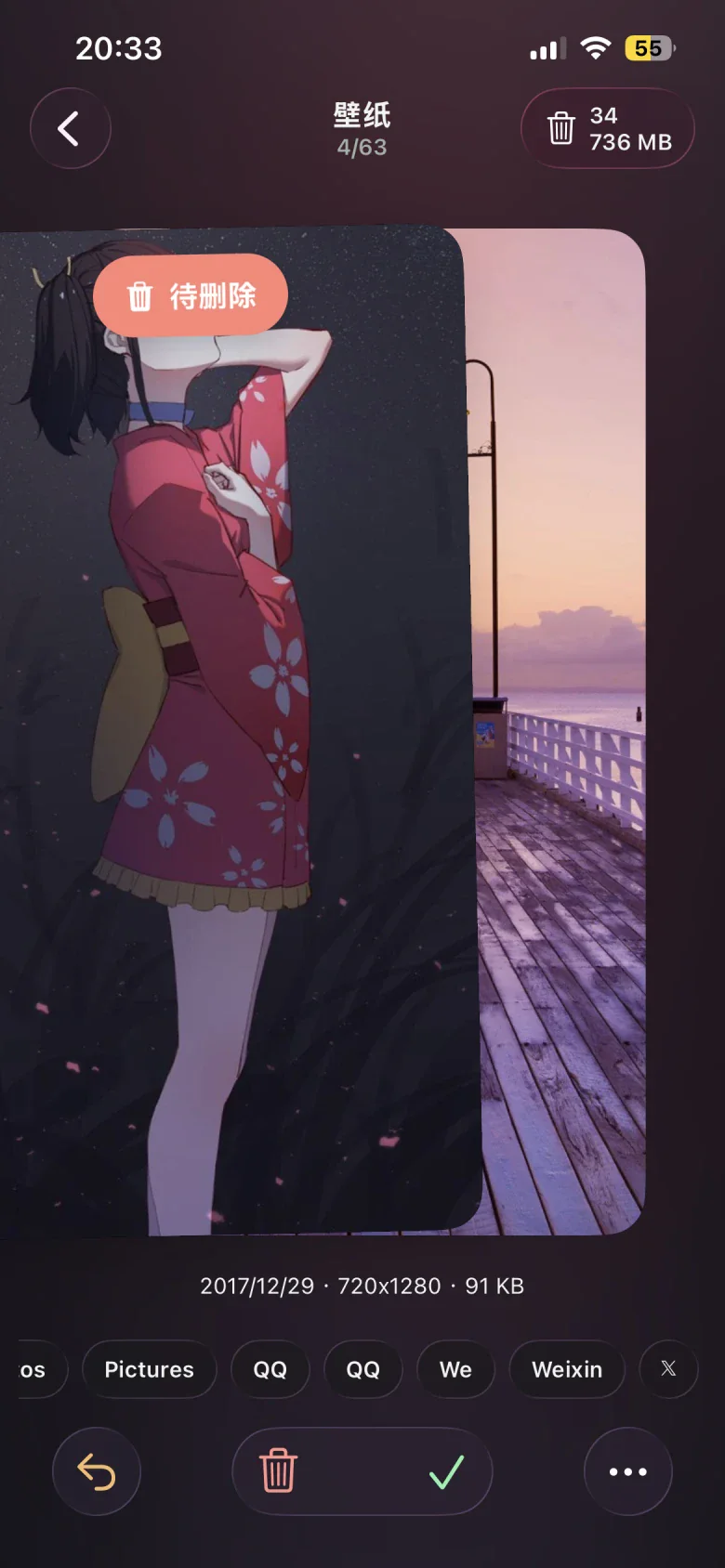
Swipe left to mark, right to keep, and work at your own pace.
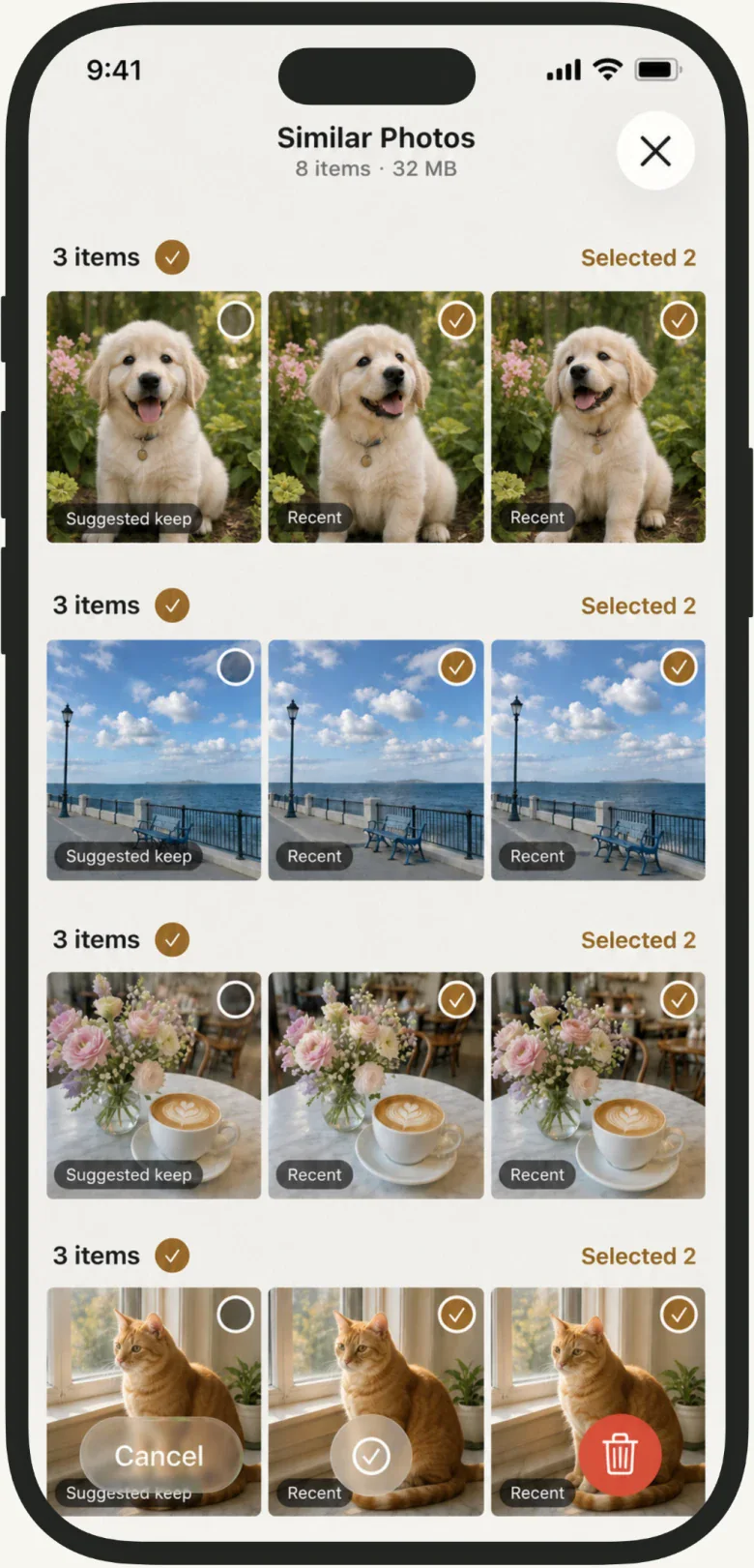
See similar shots together and keep your favorites.
Reduce file sizes to suit your needs while keeping the originals.
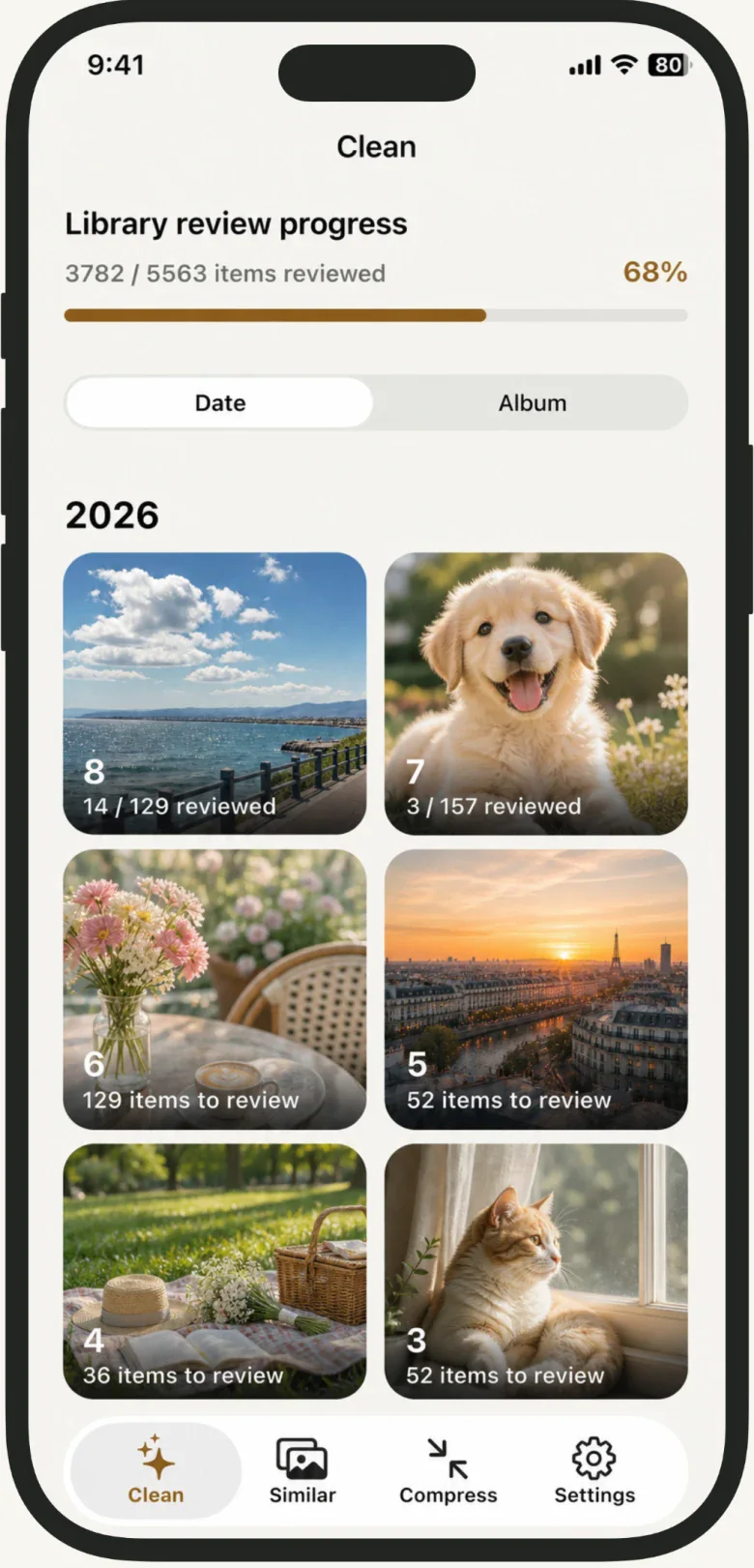
Swipe through months and albums
Start with a month or an album and pick up where you left off. For screenshots, open Screenshots in the system albums. On the compression page, sort videos by size or filter for screen recordings before choosing what to do.
Add unwanted photos to a review list. Swiping left does not delete them immediately.
Keep the moments you love, and add photos to albums as you organize.
Check the marked items and confirm before the system handles deletion.
Compare similar photos
Expressions from a burst or views of the same place are easier to compare side by side. PhotoTrim finds similar photos on your device and suggests what to keep. The final choice is yours.
Photo and video compression
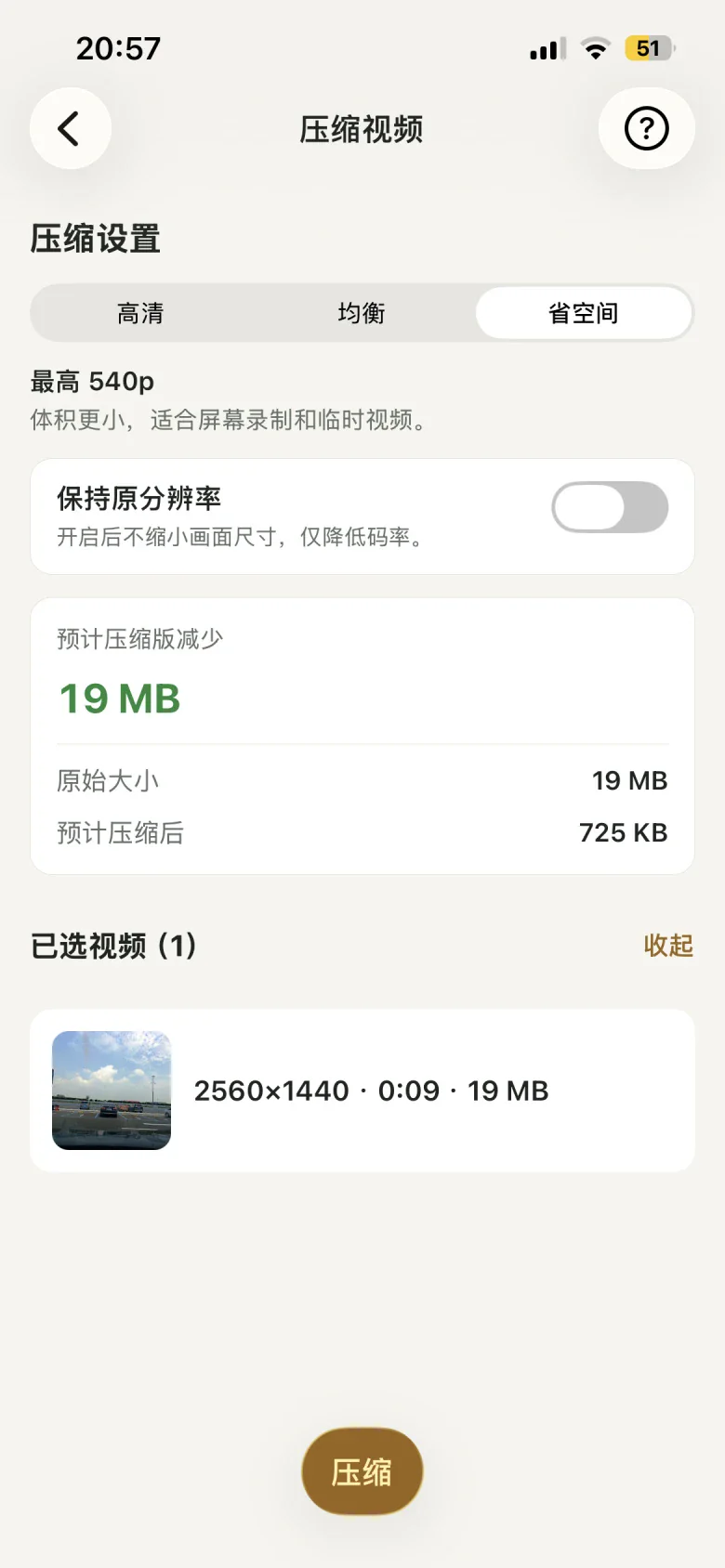
Choose compression settings that balance image dimensions and file size. Check the estimated output size before you start.
The screenshot shows an estimate for that video and those settings. Actual results vary. Saving a compressed copy does not itself free device storage; you decide whether to delete the original.
No. Swiping only marks photos to keep or adds them to a review list. You still confirm before deletion, and you can change the suggested selections for similar photos.
No. Compressed results are saved as new copies in your photo library, and the originals remain. You decide whether to delete the originals. Keeping both copies does not mean device storage has been freed.
Yes. Start from a month or album and the app saves your review progress. You can also add photos you want to keep to albums while reviewing.
To review screenshots one by one, switch to albums on the cleanup page and open Screenshots in the system albums. To find large videos, select videos on the compression page and sort by size; you can also filter for screen recordings. Compare the content before choosing compression or deletion. Compression saves a new copy, and deleting originals still requires your confirmation.
Access depends on system photo permissions and which files are available locally. Some iCloud items may need to be downloaded by the system over the internet before they can be compressed. Photo analysis and compression run on your device.
PhotoTrim
Start with a month or a group of photos, and keep the memories that matter.
App Store(for iPhone, opens in a new tab)